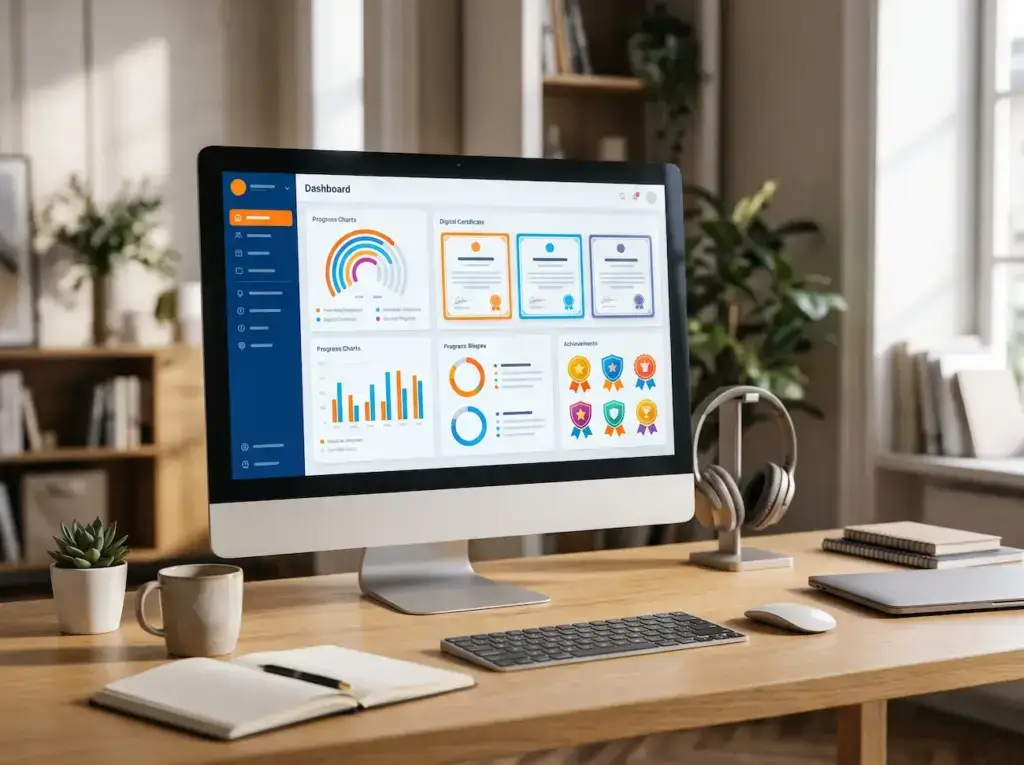
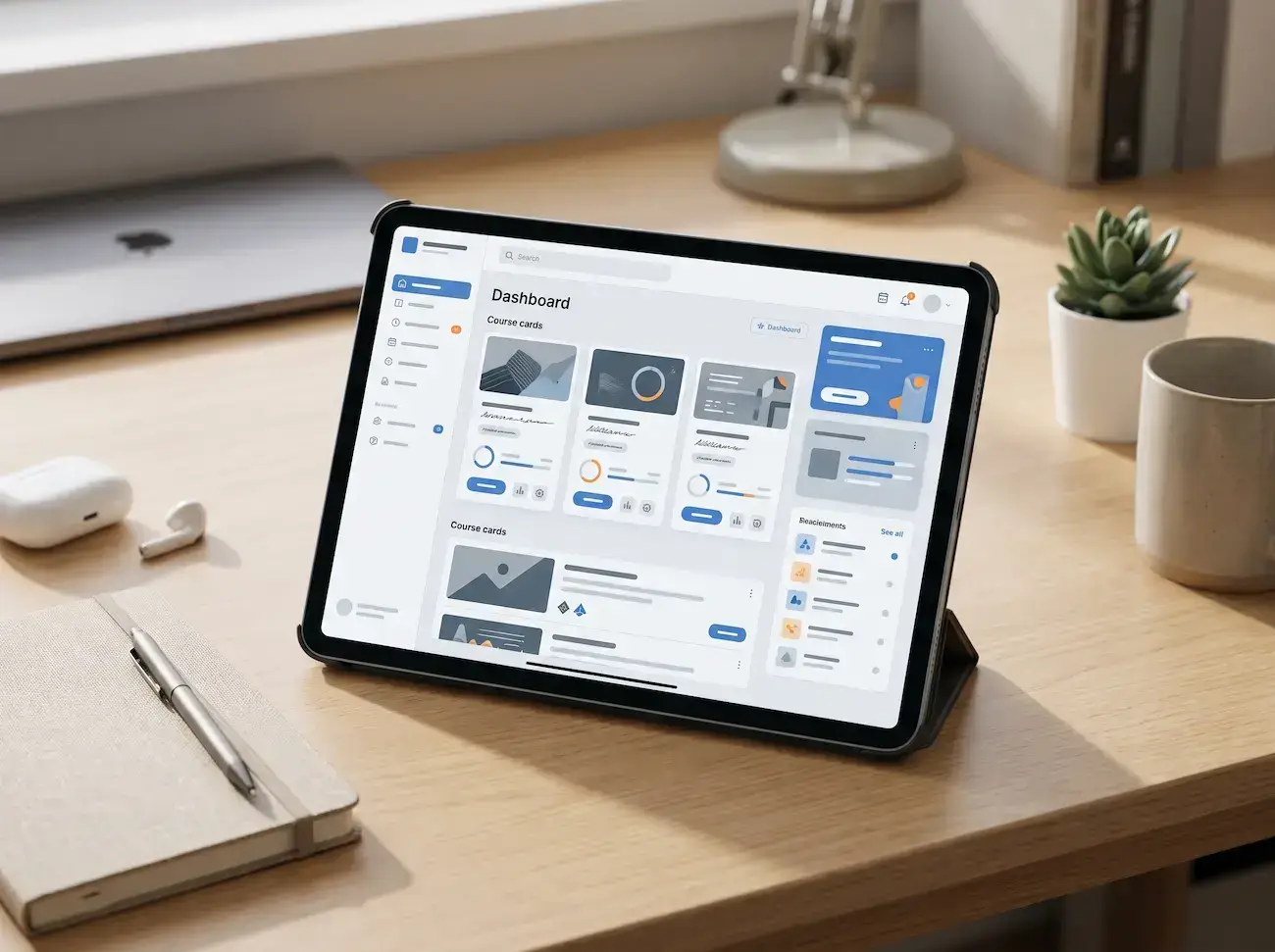
The Importance of User Interface in Educational Platforms
First, the user interface acts as a vital bridge between learners and digital educational tools. Because of this clarity, students can easily access lessons and activities. Furthermore, a well-organized layout reduces confusion. Therefore, learners can focus entirely on educational content and core objectives.
- Facilitating Content Access: Organizing courses, lessons, and quizzes into clear sections helps users quickly find the information they need.
- Reducing Usage Errors: Clarifying the functions of buttons, links, and actions helps prevent unintended selections and loss of progress.
- Promoting Independence: Enabling learners to manage their learning paths and review lessons without requiring frequent assistance.
Organizing Visual Elements and Setting Priorities
Visual hierarchy guides learners directly toward key page elements. In addition, effective design arranges headings, text, and buttons properly. Consequently, information becomes easy to digest without causing visual clutter or unnecessary distractions.
- Highlighting Main Headings: Using a clear heading hierarchy helps users understand the page structure and distinguish primary topics from supporting details.
- Emphasizing Important Buttons: Highlighting essential actions, such as starting a lesson or submitting an answer, without giving every element equal visual emphasis.
- Using White Space: Maintaining appropriate spacing between components reduces clutter and improves readability and navigation between sections.

Designing Clear Navigation Menus
Consistent navigation menus show users their exact location inside the platform. Moreover, they clarify how to move between different sections smoothly. Therefore, using familiar words makes menus match overall content structures naturally.
- Grouping Similar Sections: Organizing courses, assignments, quizzes, and achievements into logical groups makes required features easier to find.
- Keeping Elements Consistent: Maintaining the placement of menus and account tools across pages minimizes the need for users to learn new navigation patterns.
- Indicating the Current Location: Showing the page or learning unit currently being viewed, while providing a direct way to return to the previous section.
Choosing Suitable Colors and Fonts for Learning
Colors and fonts directly affect readability during long study sessions. In addition, digital guidelines require proper contrast ratios. Specifically, WCAG Level AA standards mandate a minimum contrast ratio of 4.5:1 for normal text.
- Maintaining Adequate Contrast: Selecting colors that make text easy to read against its background without relying on color alone to communicate statuses or warnings.
- Using Readable Fonts: Choosing clear typefaces and appropriate font sizes, with comfortable spacing between lines and paragraphs.
- Maintaining Consistency: Applying a unified system of colors, fonts, and icons so that all parts of the platform feel like one cohesive experience.

Designing Buttons and Interactive Elements
Buttons must have predictable responses to prevent user frustration. Furthermore, unclear labels can interrupt learning tasks entirely. Thus, interface elements should display clear actions and visible interactive states at all times.
- Clear Labels: Using phrases such as “Start Lesson” or “Submit Answer” instead of vague words that do not explain the expected action.
- Visible Element States: Indicating whether a button is processing a request, an operation has been completed, or an action is temporarily unavailable.
- Adequate Interaction Space: Making elements easy to click or tap while maintaining enough spacing to reduce accidental selections of neighboring elements.
Improving the Presentation of Lessons and Educational Materials
Lesson interfaces must present content smoothly without unnecessary distractions. In addition, proper layouts depend directly on material types. For instance, text requires clean headings, whereas video lessons require accessible playback tools.
- Separating Content from Tools: Placing educational material in a clearly defined area while keeping note-taking, navigation, and assessment tools easy to locate.
- Making Lesson Progress Easy to Follow: Providing links to the previous and next lessons while displaying the learner’s current progress within the learning unit.
- Supporting Information Review: Allowing learners to save lessons or access summaries and notes without disrupting the learning process.

Accommodating Different Devices and Screen Sizes
Platforms must remain fully usable across computers, phones, and tablets. Therefore, responsive design adjusts layouts to fit available screen space. Furthermore, true responsiveness ensures essential features stay clear and interactive everywhere.
- Rearranging Content: Moving secondary elements or adapting menus to suit smaller screens without hiding essential features.
- Optimizing Media Display: Adjusting videos, images, and tables to fit the screen while avoiding unnecessary horizontal scrolling.
- Testing Touch and Navigation: Ensuring that buttons, menus, and input fields are easy to use on touchscreen devices.
Supporting Accessibility in the Interface
Accessible designs expand learning opportunities for people using screen readers or keyboards. In addition, these requirements must be integrated early. Consequently, platforms become inclusive right from the initial design stage.
- Adding Descriptive Labels: Providing clear names for buttons and icons so that assistive technologies can communicate their functions to users.
- Clarifying Error Messages: Identifying the problem and explaining how to resolve it when incorrect information is entered or an action cannot be completed.
- Maintaining Logical Navigation Order: Organizing navigation between elements according to a logical reading sequence and keyboard interaction patterns.

Testing the Interface with Learners
Practical testing reveals hidden usability issues that designers often overlook. Furthermore, observing real users completes tasks efficiently. Therefore, watching learners helps identify impactful improvements.
- Defining Realistic Tasks: Asking participants to find a course, open a lesson, and submit an answer without providing detailed instructions for every step.
- Recording Points of Difficulty: Observing where users hesitate, click repeatedly, or return to previous pages.
- Updating the Design Based on Results: Addressing recurring problems and testing the interface again to verify improvements in performance.
Improving the User Interface Based on Data
Usage data helps determine whether interfaces support learning tasks effectively. In addition, metrics must be combined with learner feedback. Consequently, teams can distinguish between usability problems and external time constraints.
- Task Completion Success: Measuring users’ ability to access lessons and complete essential actions without external assistance.
- Time Required to Find Content: Tracking how long learners take to locate a course or quiz and simplifying lengthy navigation paths when necessary.
- Usability Feedback: Collecting users’ opinions about the clarity of menus and buttons and the readability of content, then prioritizing improvements according to the frequency and impact of reported issues.